How to Create a Site-to-Site VPN Using Grandstream Multi-WAN VPN Routers
Establishing a Site-to-Site VPN using Grandstream Multi-WAN VPN Routers is one of the most effective ways for businesses to securely connect headquarters, branch offices, warehouses, and remote facilities over encrypted IPsec tunnels.
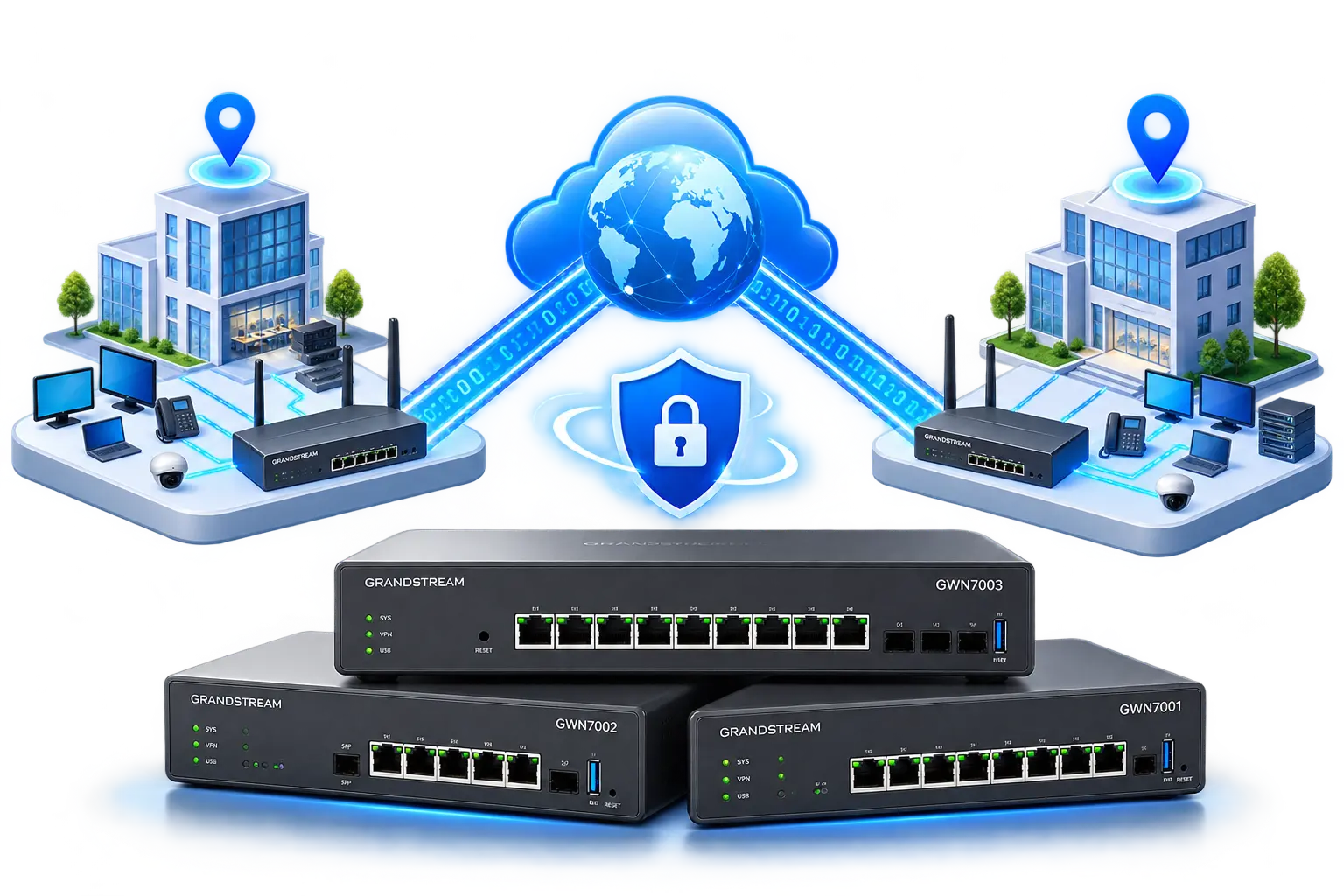
What Is a Site-to-Site VPN?
A Site-to-Site VPN (Virtual Private Network) creates a secure, encrypted connection between two distinct physical locations over the public internet. Instead of installing VPN software on every individual PC, the connection is handled directly by the network routers at each location.
Using protocols like IPsec (Internet Protocol Security), the routers establish a "tunnel." When a computer in the headquarters tries to communicate with a server in the branch office, the router encrypts the data packet, sends it over the internet, and the receiving router decrypts it before passing it to the local network.
For users and devices, the process is completely transparent. A computer in a branch office can communicate with printers, file servers, ERP systems, or VoIP IP-PBX systems at headquarters exactly as if they were in the same building.
When Should a Business Use a Site-to-Site VPN?
Grandstream VPN solutions for businesses in Pakistan and globally are highly versatile. A Site-to-Site VPN is the standard choice for linking networks in various scenarios:
🏢 Head Office ↔ Branch Office
Provide branch employees seamless access to corporate intranets, centralized CRM software, and internal file servers.
🏭 Corporate ↔ Factory/Warehouse
Connect industrial networks, supply chain systems, and inventory tracking databases directly to corporate headquarters.
📞 Multi-Site VoIP Connectivity
Deploy a centralized IP-PBX at headquarters and allow branch office IP phones to connect securely without opening SIP ports to the public internet.
📹 Centralized CCTV & NVR
Stream security footage securely from branch locations back to a central Network Video Recorder (NVR) located at headquarters.
Why Use Grandstream GWN7000 Multi-WAN VPN Routers?
The Grandstream GWN7000 series (including the GWN7001, GWN7002, and GWN7003) is purpose-built for enterprise routing and secure communications. They offer powerful business benefits beyond basic connectivity:
- Built-in Hardware-Accelerated VPN: Supports IPsec, OpenVPN, WireGuard, and PPTP to securely connect branch offices with strong encryption without requiring separate appliances.
- Multi-WAN, Load Balancing & Failover: Connect multiple internet service providers (ISPs). If your primary fiber link fails, the router automatically fails over to a secondary connection (like 4G/5G or secondary broadband), keeping your Site-to-Site VPN and business online.
- Advanced Firewall & Security: Includes NAT, Port Forwarding, DMZ, Anti-DoS, deep packet inspection (DPI), and content filtering to protect internal assets.
- Advanced QoS & VLAN: Prioritize mission-critical traffic (like VoIP SIP/RTP) ensuring voice quality isn't impacted by file downloads. VLANs help segregate voice, data, and guest traffic.
- Centralized Management: Fully manageable via the embedded local controller, GWN.Cloud, or GWN Manager, allowing IT administrators to monitor VPN status remotely.
GWN7001 vs GWN7002 vs GWN7003
The GWN7000 series routers share the same core routing and VPN performance capabilities but offer different port configurations to suit various deployment needs. Note: Always verify current specifications via official Grandstream documentation.
| Feature | GWN7001 | GWN7002 | GWN7003 |
|---|---|---|---|
| Intended Deployment | Small/Medium Business | SMB / PoE Edge | Medium/Large Enterprise |
| Ethernet Ports | 6 × Gigabit Ethernet | 2 × Gigabit Ethernet | 9 × Gigabit Ethernet |
| SFP Ports (Fiber) | None | 2 × Gigabit SFP | 2 × Gigabit SFP |
| WAN/LAN Configurable | Yes (All ports) | Yes (All ports) | Yes (All ports) |
| PoE Capabilities | None | 2 × PoE Out | 2 × PoE Out |
| NAT Routing Performance | Up to 2.2 Gbps | Up to 2.2 Gbps | Up to 2.2 Gbps |
| IPsec VPN Throughput | Up to 530 Mbps | Up to 530 Mbps | Up to 530 Mbps |
| Max Concurrent VPN Tunnels | Up to 50 | Up to 50 | Up to 50 |
| Embedded AP Controller | Up to 100 GWN APs | Up to 100 GWN APs | Up to 150 GWN APs |
The GWN7001 is an exceptional choice for branch offices. Its 6 Gigabit ports provide immense flexibility for Multi-WAN setups, and its 2.2 Gbps NAT and ~530 Mbps IPsec routing performance easily handles the encrypted traffic demands of most small to medium businesses. Up to 50 concurrent VPN tunnels means it scales effortlessly as you add more branch locations.
Note: Actual VPN throughput depends on encryption algorithms, packet sizes, ISP latency, and overall network traffic.
How to Configure GWN7001 for Site-to-Site VPN
This practical guide demonstrates how to establish an IPsec Site-to-Site tunnel between two Grandstream GWN7001 routers.
Step 1 — Plan the Network Architecture
Before configuring, document your IP schema. The most critical rule is that both locations must use different LAN subnets. If HQ uses 192.168.1.0/24 and the Branch also uses 192.168.1.0/24, the routers cannot route traffic across the VPN because they will think the destination IP is on the local network.
| Parameter | Headquarters (HQ) | Branch Office |
|---|---|---|
| Router Model | GWN7001 | GWN7001 |
| Public WAN IP (Example) | 203.0.113.10 | 203.0.113.20 |
| LAN Subnet | 192.168.10.0/24 | 192.168.20.0/24 |
| LAN Gateway IP | 192.168.10.1 | 192.168.20.1 |
| Pre-Shared Key (PSK) | StrongSecretKey2026! | |
Disclaimer: The public IPs 203.0.113.x are documentation examples. You must use your actual ISP-provided static public IP addresses or Dynamic DNS (DDNS) hostnames if using dynamic IPs.
Step 2 — Connect and Configure WAN
Ensure both routers are connected to the internet.
- Connect your ISP modem/handoff to a WAN port on the GWN7001.
- Connect a PC to a LAN port.
- Log into the web interface. (Default credentials are typically printed on the router's bottom sticker).
- Navigate to Network Settings > WAN (or Router > WAN depending on firmware).
- Configure your WAN connection method (Static IP, DHCP, or PPPoE) as provided by your ISP. Ensure the connection shows as "Online."
Step 3 — Configure LAN
Navigate to Network Settings > LAN (or Router > LAN). Modify the default LAN settings to match your plan.
- HQ Router: Set IP to
192.168.10.1and subnet mask to255.255.255.0. - Branch Router: Set IP to
192.168.20.1and subnet mask to255.255.255.0.
Step 4 — Configure IPsec Phase 1 (IKE) on HQ Router
Phase 1 establishes the secure authentication channel between the two routers.
- Navigate to VPN > IPsec > Site-to-Site in the GWN7001 interface.
- Click Add to create a new connection.
- Set a Connection Name (e.g.,
VPN_to_Branch). - Set Remote Gateway to the Branch's Public IP (
203.0.113.20). - Authentication: Select Pre-Shared Key (PSK) and enter your strong secret key.
- Configure Phase 1 (IKE) settings:
- IKE Version: IKEv2 (Recommended for modern security).
- Encryption Algorithm: AES-256
- Authentication (Integrity) Algorithm: SHA-256
- DH Group: Group 14 (or higher).
- Lifetime: 86400 seconds (24 hours).
Step 5 — Configure IPsec Phase 2 on HQ Router
Phase 2 dictates what local traffic is allowed to travel through the secure tunnel to the remote network.
- In the same VPN configuration window, locate the Phase 2 settings.
- Local Subnet:
192.168.10.0/24(The HQ LAN) - Remote Subnet:
192.168.20.0/24(The Branch LAN) - Configure Phase 2 settings:
- Protocol: ESP
- Encryption Algorithm: AES-256
- Authentication Algorithm: SHA-256
- PFS (Perfect Forward Secrecy): Enable and set to match Phase 1 DH Group.
- Lifetime: 3600 seconds (1 hour).
Save and apply the configuration.
Step 6 — Configure the Branch Router
Log into the Branch GWN7001. The Phase 1 and Phase 2 security algorithms must match exactly. However, the IP addresses and subnets must be reversed.
HQ Phase 2 Config
Remote Gateway: 203.0.113.20
Local Subnet: 192.168.10.0/24
Remote Subnet: 192.168.20.0/24
Branch Phase 2 Config
Remote Gateway: 203.0.113.10
Local Subnet: 192.168.20.0/24
Remote Subnet: 192.168.10.0/24
Step 7 — Verify the VPN Tunnel
Once settings are saved on both routers, navigate to Status > VPN Status or VPN > IPsec depending on firmware. The status should read Connected or Established. If it reads connecting, verify the pre-shared key and public IP addresses.
Step 8 — Test Connectivity
Perform the following tests to ensure routing works across the tunnel:
- Test 1 (Ping): From a PC in HQ, ping the Branch router's LAN IP:
ping 192.168.20.1. From the Branch, ping HQ:ping 192.168.10.1. - Test 2 (Internal Servers): Attempt to access an HQ file server (e.g.,
192.168.10.50) from a branch computer. - Test 3 (VoIP): If using an IP-PBX at HQ, register a branch SIP phone using the PBX's local LAN IP.
Common Site-to-Site VPN Problems and Solutions
❌ Tunnel Does Not Establish
- Mismatched Parameters: Check Phase 1/2 algorithms, PSK, and DH groups. They must be identical.
- NAT/ISP Blocks: Some ISPs block IPsec ports (UDP 500 / UDP 4500). Ensure NAT Traversal is enabled if routers are behind ISP NAT.
- Incorrect Public IPs: Verify the Remote Gateway IP is accurate and reachable.
❌ Tunnel is Up, but No Communication
- Overlapping Subnets: Ensure HQ and Branch are not both using
192.168.1.0/24. - Reversed Subnets: Ensure Local/Remote subnets are correctly mapped on Phase 2.
- Windows Firewall: Host firewalls often block pings originating from different subnets.
📞 Poor VoIP Quality Over VPN
- Bandwidth & MTU: Check for ISP packet loss. Ensure the MTU isn't causing packet fragmentation.
- QoS Configuration: Enable QoS on the GWN7001 to prioritize VoIP (SIP/RTP) traffic over standard data.
Business Use Cases
A Site-to-Site VPN enables transformative workflows for organizations operating across multiple locations, from simple peer-to-peer setups to comprehensive Hub-and-Spoke topologies connecting numerous remote branches back to headquarters.
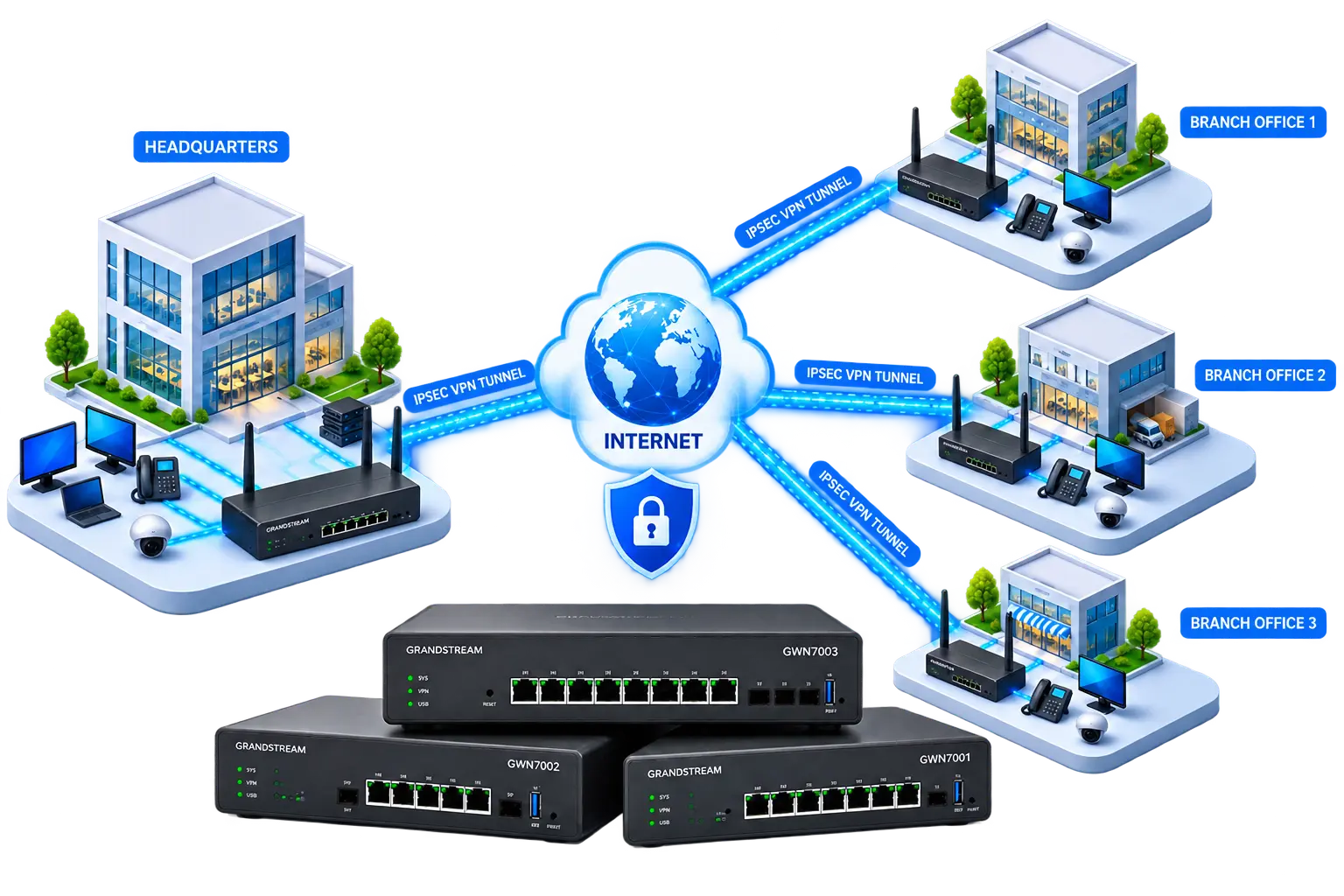
- Head Office and Branch Offices: Provide seamless, secure access to shared applications, active directory domains, and central print servers.
- Multi-Branch Retail: Connect remote Point-of-Sale (POS) systems securely to a central inventory and ERP system in real-time.
- Warehouses: Connect warehouse management systems (WMS) and barcode scanners directly to the corporate database.
- Call Centers: Connect branch networks and remote agents securely to the central IP-PBX.
- VoIP and Unified Communications: Route internal SIP extensions over a private tunnel, avoiding the security risks of exposing voice servers to the open internet.
- CCTV and Surveillance: Link distributed cameras to a central Network Video Recorder (NVR), keeping video streams strictly off public domains.
- ERP / CRM Access: Ensure accounting and CRM data is never transmitted unencrypted over public broadband.
- Schools / Educational Organizations: Link remote campuses securely to centralized administrative systems.
- Healthcare: Create secure private links between clinics and central administration for patient data (Note: Ensure appropriate application-layer security to meet local compliance).
- Remote Offices: Turn a small, disconnected remote office into an extension of the corporate LAN.
Business Benefits
Secure Inter-Office Connectivity
Military-grade AES encryption ensures your intellectual property, internal emails, and file transfers cannot be intercepted.
Reduced Dependence on Private Links
Replace expensive MPLS or leased lines with cost-effective standard broadband while maintaining data security.
Centralized Access to Applications
Host software once at HQ. Avoid licensing and maintaining decentralized servers at every branch.
Better Network Resilience
Grandstream Multi-WAN capabilities ensure the VPN stays alive by failing over to backup internet connections if the primary goes down.
Simplified Network Architecture
Manage routing, firewall, and VPN securely in a single appliance without complex edge topologies.
Scalable Multi-Site Connectivity
Deploy Hub-and-Spoke VPN topologies to easily add new branches as your business expands.
While a Site-to-Site VPN encrypts traffic across the internet, it does not inherently secure applications from internal threats. Firewall rules, endpoint security (antivirus), and application-level authentication remain strictly necessary.
Best Practices for a Secure Grandstream Site-to-Site VPN
- Use Strong Unique Pre-Shared Keys: Generate long, random alphanumeric keys. Do not use passwords like "admin123" or "vpn2026".
- Prefer Modern Encryption: Use AES-256 and SHA-256 where supported by the firmware. Avoid deprecated legacy algorithms like DES, 3DES, MD5, or SHA-1, even if older documentation mentions them.
- Keep Firmware Updated: Regularly update your GWN7000 routers to patch security vulnerabilities.
- Restrict Firewall Rules: Don't open the VPN tunnel entirely if it's not needed. Restrict firewall rules so only necessary traffic (e.g., VoIP or database access) flows across the tunnel.
- Unique LAN Subnets: Always use non-overlapping subnets (e.g., 10.10.x.x or 192.168.x.x) for every site in your organization.
- Use VLANs: Separate sensitive systems (like IP cameras or VoIP phones) onto dedicated VLANs at both HQ and the Branch.
- Document Configurations: Keep a secure offline record of your network topology, subnets, and VPN parameters.
Frequently Asked Questions
What is a Site-to-Site VPN?
A Site-to-Site VPN is a secure network connection established between two network routers over the internet. It encrypts data, allowing multiple physical offices to share network resources as if they were on the same local network.
Does Grandstream GWN7001 support IPsec Site-to-Site VPN?
Yes, the Grandstream GWN7001 features built-in hardware support for IPsec Site-to-Site VPNs, along with OpenVPN, WireGuard, and PPTP options.
Can two GWN7001 routers connect two offices?
Yes. By placing a GWN7001 router at each office and configuring IPsec Phase 1 and Phase 2 parameters, the two routers will build a secure encrypted tunnel linking both office networks.
What IP addresses are required for a site-to-site VPN?
You need a reachable public WAN IP address (preferably static) on at least one side (usually HQ) to establish the initial connection, and two distinct private LAN subnets for the local networks (e.g., 192.168.10.0/24 and 192.168.20.0/24).
Can a GWN7001 use a dynamic public IP address?
Yes, the GWN7001 supports Dynamic DNS (DDNS). If your ISP provides a dynamic public IP, you can configure DDNS and use the resulting hostname instead of an IP address in the VPN's "Remote Gateway" configuration.
Do both offices need different LAN subnets?
Yes. If both offices use the exact same LAN subnet (like 192.168.1.0/24), the routers cannot differentiate between local traffic and remote traffic, and the VPN routing will fail.
Can I connect a branch office to a headquarters ERP system using a VPN?
Yes. Once the Site-to-Site VPN is established, branch users can access HQ servers, ERPs, databases, and internal web applications using the internal IP addresses of those servers.
Can Grandstream Site-to-Site VPN carry VoIP traffic?
Yes. A Site-to-Site VPN is an excellent way to connect branch IP phones to a central IP-PBX (such as a Grandstream UCM) securely. It avoids exposing SIP ports to the public internet.
Can I connect CCTV cameras between two offices using VPN?
Yes, CCTV streams can be routed securely through the VPN from remote cameras to a central NVR. However, you must ensure your internet connection has sufficient upload bandwidth to handle continuous video streaming.
What is the difference between GWN7001, GWN7002 and GWN7003?
While all three share the same core routing and VPN performance, the hardware interfaces differ. The GWN7001 has 6 Gigabit Ethernet ports. The GWN7002 includes 2 Gigabit Ethernet, 2 SFP fiber ports, and PoE out. The GWN7003 expands this to 9 Gigabit Ethernet ports, 2 SFP ports, and PoE out.
How many VPN tunnels can the GWN7000 routers support?
The Grandstream GWN7001, GWN7002, and GWN7003 routers support up to 50 concurrent VPN tunnels, making them highly scalable for Hub-and-Spoke deployments across multiple branches.
Does a Site-to-Site VPN encrypt traffic between offices?
Yes, IPsec Site-to-Site VPNs heavily encrypt the traffic packet payload (using algorithms like AES-256) before it crosses the public internet, ensuring data privacy and integrity between sites.
Configuration examples in this guide are provided for educational and deployment-planning purposes. Exact menu names, firmware behavior and available options may vary by Grandstream firmware version, network topology and deployment environment. Always verify the configuration against the current Grandstream documentation before production deployment.
Connect Your Business Locations Securely
Need help designing, configuring, or deploying a Grandstream-based Site-to-Site VPN across your branch offices? From network planning to full implementation, Grandstream Networking Solutions from TekkPak Technologies provide the expertise you need to scale securely.
Talk to TekkPak TechnologiesDiscover more from TekkPak Technologies
Subscribe to get the latest posts sent to your email.