
How to Configure a Grandstream UCM PBX and IP Phone
A practical, production focused guide to planning, installing, securing and testing a Grandstream UCM6300 or UCM6300 Audio Series IP PBX, including extensions, Grandstream IP phones, SIP trunks, PTCL lines, IVR, call queues, Wave and UCM RemoteConnect.
Quick answer: Connect the UCM to your LAN, sign in through its HTTPS address, update the firmware, assign a reserved or static IP, create extensions, provision each Grandstream IP phone through Zero Config, connect an analog or SIP trunk, build inbound and outbound routes, then test two way audio, failover, security and backups before going live.
What This Grandstream UCM Setup Guide Covers
This walkthrough is written for business owners, IT administrators and installers configuring a new Grandstream UCM system. Firmware can change labels slightly, but the deployment logic remains the same.
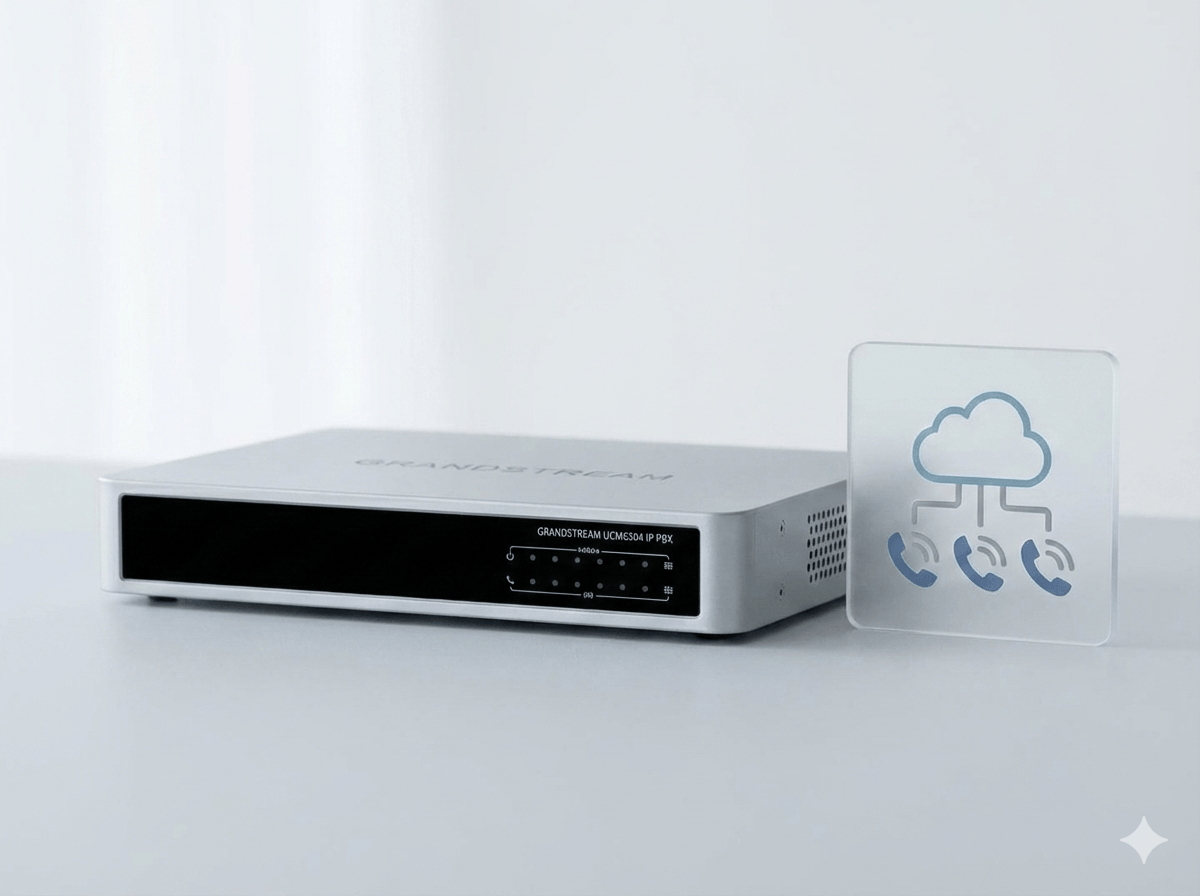
Prerequisites Before You Configure the Grandstream UCM
Good PBX deployments begin with numbering, networking and call flow decisions. Record these items before opening the web interface.
Network plan
- Router, managed switch and DHCP details
- Reserved or static IP for the UCM
- Voice VLAN and QoS policy if used
- DNS, NTP, gateway and subnet values
Extension plan
- Extension length and numbering range
- User names, emails and departments
- Reception, ring group and queue numbers
- International call permissions
Carrier information
- SIP registrar, authentication and DIDs
- PTCL or other analog line count
- GSM gateway and business SIM details
- Required outbound caller ID policy
Hardware
- Correct UCM model for users and call load
- PoE switch capacity for desk phones
- UPS backup for PBX, router and switches
- Headsets and paging devices if required
Call flow
- Business hours and holiday schedule
- IVR prompts and key destinations
- Overflow, timeout and no answer paths
- Voicemail and emergency routing
Security and recovery
- Unique admin and SIP passwords
- Firewall and trusted network policy
- Backup destination and retention
- Current firmware and maintenance window
How to Configure a Grandstream UCM6300 IP PBX
Complete the steps in sequence. Take a configuration backup at major milestones so you can roll back safely.
Connect and discover the UCM
- Connect the UCM LAN port to the office switch or router and apply power.
- Read the assigned IPv4 address from the front LCD.
- From a computer on the same trusted LAN, open https://UCM IP address.
- Verify that the browser address matches the device before continuing past any local certificate warning.
Sign in and secure the administrator account
Use the administrator name and the unique initial password printed on the unit label or supplied with the device.
- Change the administrator password immediately.
- Use a long, unique password stored in a business password manager.
- Create named administrator accounts with the minimum required privileges instead of sharing one login.
Update firmware and save a baseline backup
- Check the exact model and current firmware.
- Read the official release notes before upgrading.
- Upgrade during a maintenance window and do not interrupt power.
- After reboot, confirm services and create the first configuration backup.
Configure network, time and email
- Assign a reserved DHCP lease or static IP outside the dynamic pool.
- Enter the correct gateway, DNS and NTP servers.
- Set the time zone to Asia/Karachi for Pakistan deployments.
- Configure SMTP so voicemail, alerts and user welcome emails can be delivered.
Create extensions and user permissions
- Create a SIP extension for each person, room or service.
- Use a unique random SIP password for every extension.
- Add the user's display name and email address.
- Set the extension's outbound privilege level and voicemail policy.
- Avoid predictable credentials such as extension 1001 with password 1001.
Provision Grandstream IP phones
- Connect each supported Grandstream phone to the voice network and PoE switch.
- Discover the phone, identify its MAC address and assign the correct extension.
- Apply a model or group template for keys, codec preference, time and firmware.
- Update or reboot the phone, then confirm that its account shows registered.
Connect a SIP, analog or GSM trunk
- For SIP, enter only the carrier supplied registrar, authentication, transport and caller ID values.
- For analog lines, connect the line to an FXO port and tune regional line parameters.
- For GSM or SIM service, connect a compliant SIP GSM gateway and follow local operator requirements.
Build outbound routes
- Create explicit dial patterns for local, mobile, national and international calls.
- Select the intended trunk and configure strip or prepend rules only when needed.
- Match route privilege with each extension's privilege level.
- Add a controlled backup trunk if business continuity requires it.
Build inbound routes
- Map each DID, SIP trunk or analog line to the required destination.
- Use separate destinations for office hours, after hours and holidays.
- Choose an IVR, ring group, queue, extension or voicemail destination.
- Test the route from an external phone and verify the presented caller ID.
Create IVR, ring groups and queues
- Upload clear prompts and keep menu choices short.
- Give callers a valid timeout and invalid entry destination.
- Use ring groups for simple team ringing and queues for managed agent distribution.
- Define overflow so calls never end in a dead route.
Enable Wave and remote connectivity
- Link the UCM6300 to GDMS and configure UCM RemoteConnect where required.
- Enable Wave access only for approved users.
- Send the user welcome or QR provisioning information through a trusted channel.
- Test from mobile data outside the office WiFi, including audio in both directions.
Test, document and back up
- Test internal, inbound, outbound, transfer, hold, voicemail and emergency scenarios.
- Confirm two way audio and DTMF through every trunk.
- Record the IP plan, extensions, routes, licences, support contacts and recovery process.
- Schedule encrypted backups and test that a backup can be restored.
How to Configure a Grandstream IP Phone on a UCM
For a supported Grandstream handset on the same trusted network, UCM Zero Config is normally the most manageable method. It links the phone's MAC address to an extension and applies consistent templates. Manual SIP registration is useful for testing or exceptional devices, but it is harder to maintain at scale.
Method 1: UCM Zero Config provisioning
- Factory reset a previously used handset only after saving any configuration you must retain.
- Connect the phone to the correct LAN or voice VLAN and confirm that it receives an IP address.
- Open Device Management → Zero Config in the UCM interface.
- Discover the endpoint or locate it by MAC address.
- Select the phone, assign an existing extension and apply the appropriate model or group template.
- Choose update or provision, then allow the phone to reboot if required.
- Check the phone display and UCM extension status, then place internal and external test calls.
Method 2: Manual SIP registration
Open the IP phone's HTTPS web interface and configure one SIP account using the values from the UCM extension. Field names differ by model, but the mapping below is consistent.
| IP phone field | Value to enter | Example or note |
|---|---|---|
| Account Active | Yes | Enable the account being configured |
| Account Name | User or department label | Reception |
| SIP Server | UCM LAN IP or approved server address | 192.168.10.10 on the local LAN |
| SIP User ID | Extension number | 1001 |
| Authenticate ID | Extension authentication ID | Often the extension number unless changed |
| Authenticate Password | Unique SIP password | Copy from the extension securely |
| Name | Caller display name | Ahmed or Reception |
| Transport | Match the approved UCM transport policy | Do not change blindly to solve registration |
After saving, confirm that the phone shows Registered. A successful registration alone is not enough. Test two way audio, transfer, hold, voicemail access, inbound caller ID, outbound caller ID and DTMF through an IVR.
Connect SIP Trunks, PTCL Lines or GSM Gateways
The best trunk type depends on number availability, concurrent call requirements, internet resilience, budget and regulatory compliance.
| Connectivity | Best suited to | UCM connection | Key checks |
|---|---|---|---|
| SIP trunk | Multiple channels, DIDs, scalable offices and call centers | VoIP trunk over the IP network | Carrier credentials, codec, NAT, IP authentication, DTMF and caller ID |
| PTCL or analog line | Retaining an existing copper number or providing a local fallback | Built in FXO port or external FXO VoIP gateway | Line voltage, regional tones, echo, disconnect supervision and port mapping |
| GSM or SIM gateway | Approved mobile network calling or continuity use cases | SIP trunk between the UCM and gateway | Business SIM terms, operator rules, signal quality, antenna placement and routing |
| Cloud PBX carrier | Businesses choosing a hosted platform instead of an on premise appliance | Not normally a local UCM trunk unless the provider supports the design | Recurring charges, local numbers, data residency, support and failover |
Design the Inbound Call Flow Before Building It
A clear call flow improves customer experience and makes troubleshooting easier. Start with the business outcome, then translate it into UCM objects.
Use IVR for clear choices
Keep the welcome message concise, limit menu depth, allow callers to repeat the menu and define timeout and invalid entry destinations.
Use a ring group for simple teams
Choose simultaneous or sequential ringing when the main requirement is to ring a known group without queue reporting or agent states.
Use a queue for managed traffic
Use call queues when callers may wait for agents and you need distribution strategies, announcements, agent login and operational reporting.
Grandstream UCM Security Checklist
VoIP fraud can create financial and operational damage. Treat security as part of the original configuration, not as a later add on.
Passwords and access
Use unique administrator and SIP credentials, minimum privilege accounts, session controls and multifactor protection where supported by the chosen management service.
Network exposure
Keep administration on trusted networks, restrict firewall rules, remove unused services and avoid broad internet port forwarding.
Call permissions
Restrict international and premium destinations, apply route privilege levels and investigate unusual call patterns quickly.
Threat controls
Enable and tune Fail2ban, static defence or firewall features for the deployment without locking out legitimate management addresses.
Updates and certificates
Track supported firmware, read release notes, use trusted certificates where applicable and perform updates in a tested maintenance window.
Backups and monitoring
Schedule protected backups, keep an offline copy, test restoration and monitor registration, trunks, storage, call quality and security events.
Grandstream UCM and IP Phone Troubleshooting
Change one variable at a time and keep a record. The fastest diagnosis separates registration, signalling, media and routing.
| Symptom | Likely area | What to check first |
|---|---|---|
| Cannot open UCM web interface | Addressing or access | LCD IP, client subnet, cabling, VLAN, ping response, HTTPS URL and local firewall |
| IP phone will not register | Credentials or provisioning | UCM address, extension, authentication ID, SIP password, account enabled state and duplicate registrations |
| Phone is missing from Zero Config | Discovery or network segmentation | MAC address, same discovery network, VLAN design, subnet whitelist and endpoint provisioning state |
| One way or no audio | RTP, NAT or firewall | Test LAN calls, RTP handling, SIP ALG, NAT addresses, firewall policy and carrier media path |
| Outbound calls fail | Route or trunk | Dial pattern, strip and prepend settings, privilege level, trunk status, number format and carrier response |
| Inbound calls miss the destination | Inbound route | DID format, trunk match, time condition, destination availability and failover path |
| IVR does not recognise digits | DTMF | Carrier DTMF method, trunk setting, codec path and tests from more than one external network |
| Poor voice quality | LAN, WAN or codec | Latency, jitter, packet loss, bandwidth, QoS, duplex errors, WiFi signal and call quality reports |
IP Phones, VoIP Gateways, GSM Gateways, IP PBX or Cloud PBX?
Price matters, but lifecycle, warranty, manageability, network fit and support usually matter more than buying the cheapest isolated device.
Frequently Asked Questions About Grandstream UCM Configuration
Concise answers to the questions businesses and IT administrators most often ask during a UCM deployment.
What is the default IP address of a Grandstream UCM?
What is the default Grandstream UCM administrator password?
How do I register a Grandstream IP phone to a UCM?
Can a Grandstream UCM work with PTCL analog lines?
Can I connect a SIP trunk to a Grandstream UCM6300?
Can I use a GSM or SIM gateway with a Grandstream UCM?
How do remote users connect to a UCM6300?
Why does my Grandstream phone register but have one way audio?
Should I choose Grandstream UCM or a cloud PBX?
Can Grandstream UCM be used for a call center?
Related Grandstream and IP Telephony Guides
Use these resources to plan trunks, compare PBX platforms and select the wider communications architecture.
Need a Secure, Production Ready Grandstream UCM Deployment?
TekkPak Technologies can help with UCM sizing, Grandstream IP phones, SIP and analog trunks, compliant gateway integration, IVR, queues, Wave, UCM RemoteConnect, security, testing and user handover across Pakistan.
Discover more from TekkPak Technologies
Subscribe to get the latest posts sent to your email.